Showing posts with label nested lab. Show all posts

Saturday, October 1, 2016

Nested Nutanix CE on ESXi - create your own vmdk descriptor

Why they don't provide a bootable ISO that can install to a bare VM disk, like everyone else does, is beyond me.

Instead, you get a bootable disk image, which you are supposed to rename, upload and use as the boot disk. All the tutorials I found on the net provided a text file to use as the vmdk descriptor. The ones I found were the best were by Joep Piscaer and Michael Webster.

None of the few posts I read ( and I only read 3 or 4) explained how the descriptor file was created. In my case, because the Nutanix CE file has changed from when the blog posts where published, I couldn't use the text file (not sure if just the cylinders value had to be adjusted, or what). So I created my own. I thought I would share how I did it.

1) Create a VM (following the other post's instructions) but instead of following the text file advice, add a new disk that is the exact size as the img file (that you extracted from the .gz download). For "ce-2016.08.27-stable.img" it was exactly 7100 MB.

2) Upload the img file to the datastore in the same folder as where you created the disk, with any name. In the following SSH session output, orange is the new empty disk created, green is the uploaded extracted file. Notice they are the same size.

[root@arielitox:/vmfs/volumes/5557fee9-bd5cfd2a-29f6-5404a61bb2db/Nutanix CE v1] ls -al
total 14550032
drwxr-xr-x    1 root     root          2380 Oct  2 02:01 .
drwxr-xr-t    1 root     root          4200 Sep 30 19:07 ..
-rw-------    1 root     root          8684 Oct  1 21:33 Nutanix CE v1.nvram
-rw-r--r--    1 root     root             0 Sep 30 19:07 Nutanix CE v1.vmsd
-rwxr-xr-x    1 root     root          3111 Oct  2 02:01 Nutanix CE v1.vmx
-rw-------    1 root     root     536870912000 Oct  1 21:39 Nutanix CE v1_2-flat.vmdk
-rw-------    1 root     root           506 Oct  1 21:39 Nutanix CE v1_2.vmdk
-rw-------    1 root     root     7444889600 Oct  2 01:59 Nutanix CE v1_3-flat.vmdk
-rw-------    1 root     root           472 Oct  2 02:01 Nutanix CE v1_3.vmdk
-rw-------    1 root     root     7444889600 Sep 30 19:24 ce.vmdk
-rw-r--r--    1 root     root         55642 Oct  1 21:36 vmware-3.log
-rw-r--r--    1 root     root         57243 Oct  1 21:36 vmware-4.log
-rw-r--r--    1 root     root         58555 Oct  1 21:37 vmware-5.log
-rw-r--r--    1 root     root         58340 Oct  1 21:39 vmware-6.log
-rw-r--r--    1 root     root         57322 Oct  1 21:39 vmware-7.log
-rw-r--r--    1 root     root         58631 Oct  1 21:44 vmware-8.log

3) Use the move command to overwrite the empty file with the same name as the file you created (your name will vary). I do this so we don't need to change the small vmdk descriptor file using vi. After running the command, notice the uploaded image file name no longer exists; move overwrites without confirmation, and now the image file contents are in the vmdk that we had created.

[root@arielitox:/vmfs/volumes/5557fee9-bd5cfd2a-29f6-5404a61bb2db/Nutanix CE v1] mv ce.vmdk "Nutanix CE v1_3-flat.vmdk"
[root@arielitox:/vmfs/volumes/5557fee9-bd5cfd2a-29f6-5404a61bb2db/Nutanix CE v1] ls -al
total 7279632
drwxr-xr-x    1 root     root          2240 Oct  2 02:02 .
drwxr-xr-t    1 root     root          4200 Sep 30 19:07 ..
-rw-------    1 root     root          8684 Oct  1 21:33 Nutanix CE v1.nvram
-rw-r--r--    1 root     root             0 Sep 30 19:07 Nutanix CE v1.vmsd
-rwxr-xr-x    1 root     root          3111 Oct  2 02:01 Nutanix CE v1.vmx
-rw-------    1 root     root     536870912000 Oct  1 21:39 Nutanix CE v1_2-flat.vmdk
-rw-------    1 root     root           506 Oct  1 21:39 Nutanix CE v1_2.vmdk
-rw-------    1 root     root     7444889600 Sep 30 19:24 Nutanix CE v1_3-flat.vmdk
-rw-------    1 root     root           472 Oct  2 02:01 Nutanix CE v1_3.vmdk
-rw-r--r--    1 root     root         55642 Oct  1 21:36 vmware-3.log
-rw-r--r--    1 root     root         57243 Oct  1 21:36 vmware-4.log
-rw-r--r--    1 root     root         58555 Oct  1 21:37 vmware-5.log
-rw-r--r--    1 root     root         58340 Oct  1 21:39 vmware-6.log
-rw-r--r--    1 root     root         57322 Oct  1 21:39 vmware-7.log
-rw-r--r--    1 root     root         58631 Oct  1 21:44 vmware-8.log

Your VM should be able to boot. In my case, I did assign this disk a SATA controller, so I went in BIOS and set that one to be the first boot disk, and now I could see the Nutanix splash screen, and get the installer prompt a bit later.

This procedure should work for any other release of Nutanix CE (as long as this awkward img method is used). Feel free to use this text file for release 2016.08.27-stable, but at least you know how it was created in case it doesn't work for you:

[root@arielitox:/vmfs/volumes/5557fee9-bd5cfd2a-29f6-5404a61bb2db/Nutanix CE v1] vi "Nutanix CE v1_3.vmdk"

# Disk DescriptorFile
version=1
encoding="UTF-8"
CID=5c98c0d4
parentCID=ffffffff
isNativeSnapshot="no"
createType="vmfs"

# Extent description
RW 14540800 VMFS "Nutanix CE v1_3-flat.vmdk"

# The Disk Data Base
#DDB

ddb.adapterType = "ide"
ddb.geometry.cylinders = "14425"
ddb.geometry.heads = "16"
ddb.geometry.sectors = "63"
ddb.longContentID = "f93da8daf3cd8a949323e2d55c98c0d4"
ddb.uuid = "60 00 C2 90 85 79 c8 33-48 87 1c 59 12 32 c3 6a"
ddb.virtualHWVersion = "11"


Wednesday, July 20, 2016

VMware VSAN basics (nested lab)

With everything VSAN it's important to remember to work through the web client, and at this moment, only the flex version supports all commands (h5 doesn't have them yet).


  1. Create 3 or more nested hosts with at least 6GB RAM (add more for your VMs). 
  2. Setup a separate VMK that you will tag for VSAN traffic. I set these on a separate NIC and subnet, in a vSS with no uplink, using VMXNET3 interfaces (10GB) to separate from the 1GB where i'm running management and VM traffic. Don't forget to set promiscuous mode on the switch so everyone can ping each other.
  3. Add an SSD disk, and a capacity disk (in the case of hybrid). I found that my nested host picked up the type automatically, but I'm pretty sure you can "tag" the device as SSD or HD from the interface as needed, in case you want to test all flash.
  4. Create a cluster, move 3 or more hosts in
  5. Enable VSAN, which will take you through the wizard that enables VSAN.


That's really it. You will see a new vsanDatastore datastore that is shared among all hosts. You can rename this datastore. There's a performance service and a health service you can check. If you did everything well, you will pass all tests except the HCL, for obvious reasons.

Very important - when putting a host in maintenance mode, always do it from the webclient. There are new options that VSAN exposes in a drop down!

Monday, December 8, 2014

vcsa 5.5 with domain authentication

If you have joined the vcsa to a domain in the authentication tab of your vcsa administrative console, you do not need to add a STS SPN; you can use the machine account to add the identity source of that same domain.

What you do need is to go to your AD DNS and make sure the forward and reverse entries for the new VCSA and your AD have been created, and your VCSA has the proper DNS settings.

pics will come, but I have seen google lead me to believe I have to use a SPN, or that I have to add it as a AD LDAP source. None of these are needed if you already joined the VCSA to the domain; you could use them for additional domains.

Sunday, December 7, 2014

Nested ESXi in a physical ESXi quick sheet

First of all, hardware has to meet some minimum requirements

- your CPU should have VT (google the CPU, see the advanced technologies at the bottom, example: http://ark.intel.com/products/52214)
- enable CPU VT option in BIOS (if you just did a BIOS update, check it again)
- this machine should have enough RAM for the physical ESXi and the nested ESXi (especially if you want to run more than one nested host to test all features of vcenter) and the VMs. I'd say 16GB is conservative, but definitely doable.

Recommendations so the VMs perform well
- SSD (if you have both SSD and spinning, move VMs you aren't using as much to the slower disk)
- at least 1 cabled gigabit
- plenty of ram

if the physical host is 5.0 and you are deploying nested 5.5

- choose rhel 5 x64 bit as OS when creating the nested ESXi VM
- I honestly only put a 1GB disk. if you need the logs, you can send them elsewhere using syslog.
- I choose vmxnet3 - intel should work too
- make sure you give it more ram (the default for rhel 5 is 1GB and the installer would fail)
- add the string vhv.allow = "TRUE"  to /etc/vmware/config in your Physical ESXi 5.0 host (with vi through SSH, for example)

Saturday, July 5, 2014

Nested ESXi lab - part 1 - getting the right downloads for the main site

I reviewed what I want to accomplish in this lab in

http://learning-in-it.blogspot.com/2014/07/nested-esxi-lab-design-thoughts.html

Now I get to do it.

The first site will be done in VMware workstation v9. I use this version because when I got the VCP certification, they gave me a free license. However, you can buy or get a trial license from the vmware.com site. I believe all trials are for 60 days.

I am using the linux version - just because i'm trying to learn linux, and there's no better way to learn than doing - but you can probably do the same things in the windows version. If you have problems running the linux version, please see this post http://learning-in-it.blogspot.com/2014/05/installing-vmware-workstation-9-in.html

First let's download the appropriate ISOs:

VMware

You'll need to setup a free account if you don't have one already. I will attach screenshots since some friends have asked me exactly what to download.

In my case I will enroll in a vSphere with Operations Management (also called vSOM) trial.


Here is where you create or login to your MyVMware account (usual activation steps required)


Make a note of the evaluation license key and let's download the required packages.


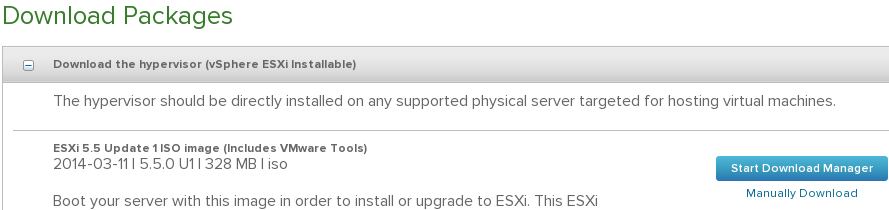
ESXi - this iso is typically around 300MB. This lab will be done on ESXi5.5. I will be actually using an older one so we can patch it once installed, but here is the image of how it looks


vCenter - this is the windows installer, we will use it on the remote site. This is typically a 3GB ISO. I will use an older version and then upgrade it with the newest as part of the lab. The windows C# vsphere client is included in this ISO, so there is no need to download it separately.


vCenter appliance. Download either the one .ova file, or the very small ovf file and both disks (check for vmdk). Why both options? OVA is a tar of an OVF. Workstation can open ovf and vmdk's directly, but it will need to unzip the OVA.


Operations management is it's own OVA file. This will be the last one we download for now.


Openfiler

This is basically linux based SAN software. For the main site, I will use it as a iSCSI target. It's simple and small enough (500MB download) for my purposes. I will change this in the recovery site and use NFS instead there for study purposes.

https://www.openfiler.com/

We will download the v2.99 ISO and create our own VM. i know there's a prepackaged one there, but see what I do and then decide for yourself. Cick on the community edition and the download arrow.


don't forget to read the system requirements

https://www.openfiler.com/products/system-requirements


Microsoft

We will download a trial of Server 2012 R2 to setup AD. I actually want to test an installation with no GUI for the recovery site, see how managing that works. Make sure you choose the ISO download option. You will need a microsoft related account to register.


Always important to read the system requirements http://technet.microsoft.com/library/dn303418.aspx . Note also that this trial runs for 180 days.

We will also download a SQL Server trial. We will use it with the windows based vCenter in our recovery site. VMware vCenter includes an embedded, free edition of MS SQL, but nobody uses that in a real company - it is very limited. You should involve your company's DBA to take care of your vCenter SQL DB and have it run as best as it can. Installation is tougher this way, but when you work with your DBA and tell him dbo rights are really required, you will understand why.

Important caveat - as of this writing, SQL server 2014 is not in the VMware inter-operatibility matrix - 2012 is the newest supported one.


This is the link for the 2012 trial http://www.microsoft.com/en-us/download/details.aspx?id=29066

Also read the system requirements http://msdn.microsoft.com/library/ms143506(v=SQL.110).aspx

Linux

We need some VMs. We already have the 2012 R2 installer, but we should also practice Linux. My workstation runs on Fedora, but in an effort to branch out, I will use the Ubuntu 14.04 LTS server

http://www.ubuntu.com/download/server


Al of these downloads are upwards of 12GB, so make sure you have them ready before starting the next step.

Nested esxi lab - design thoughts

I will create a lab with 2 sites, one site using VMware Workstation on my laptop and the other will be a physical ESXi host.

In each, we will create nested ESXi v5.5 hosts.

The objectives of this lab are:

1) practice for VCAP-DCA
2) learn and test vSphere replication and SRM
3) learn and test vCops

We will also work with

Active Directory - one ADDC for each site, running in the nested ESXis
iSCSI on the main site with Openfiler running on a VM at the same level as the nested ESXis
NFS on the backup site, with TBD running on a VM at the same level as the nested ESXis

One vcenter will be the appliance and another the windows version, running on the nested ESXis

The hardware we have:

both i7
both 32 gb ram
both have one SSD and one hard disk
communicating over a home wireless 802.11ac (not exactly gigabit, but this simulates commercial WAN links fairly decently)

All will run on temporary licenses.